In this article I'm writting about Logging features in SQL Server Integration Services (SSIS).
I'hv been using SSIS since last 6-7 years and I have had to implement Logging Mechanism in almost all the projects to track/debug the execution of each and every task/event used in the package. Some of you may say its pretty easy to implement - still I guess we need to take care of logging because some of the things are not so easy.
Integration Services includes logging features that write log entries whenever run-time events occur but the good thing is that it can also write custom messages. Also SSIS supports a diverse set of log providers that can write log entries to: Text files, SQL Server Profiler, SQL Server, Windows Event Log, or XML files.
My favourite log is SQL Sevrer because using sql table I can write my own queries to find logging info related to specific task/event or any failure easily.
Basically SSIS logs are associated with packages and are configured at the package level. The task(s)/container(s) in a package can be enabled for logging even if the package itself is not e.g enable logging on an Execute SQL task without enabling logging on the parent package. Also package/container/task can write to multiple logs. You can enable logging on the package only, however you can choose to enable logging on any individual task/container.
You can select a level of logging as per your requirement by specifying the events to log and the information to log for each event, however some events provide more useful information than others.
I'll explain Logging using SQL Server 2012.
Note: SSIS 2005 uses table sysDtsLog90 for logging and SSIS 2008 & SSIS 2012 use sysSSISLog table for logging.
Below is the description of each element in the log schema:
The following table describes the predefined events that can be enabled to write log entries when run-time events occur:
Implementing Logging in SSIS 2012
Step1. Create a Connection Manager for logging database. Right click on Connection Managers area and click on New OLE DB Connections... as shown below:

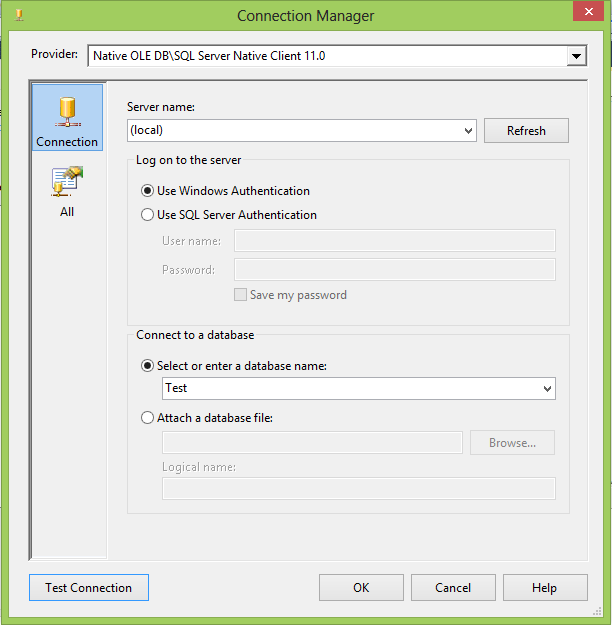
Step2. In the "Configure OLE DB Connection Manager" click on Create button. Now select Server Name and database name from Connect a database. I am using (Local) server and Test database. Click on Test Connection button to verify the connection.

Finally click on OK button to save the connection manager. This will create a new connection manage with ServerName.DatabaseName name. In my example, it is (local).Test. You can rename it to appropriate and meaningful name. For instance cmLogging.
Step3. Right click anywhere on the package surface area in the Control Flow to open Configure SSIS Log: Package wizard. Check the Package folder checkbox (left side) to enable the logging. Under the "Providers and Log" tab, select "SSIS log provider for SQL Server" in Provider type and click on Add button t add this logging for the package. Finally, click on Configuration to select the logging connection manager. Select cmLogging as connection manager.

Step4. Select logging events.
To prevent log files from using large amounts of disk space, which could degrade performance, you can limit logging by selecting specific events and information items to log. For example, you can configure a log to capture only the date and the computer name along with error message. It is not a good idea to log all the events. Under "Details" tab, select required events for logging:
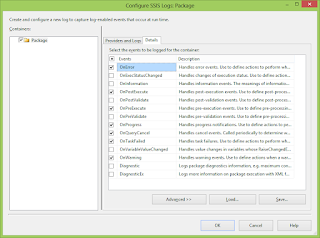
Step5. Click on Advance button to set advance properties of the logging events.
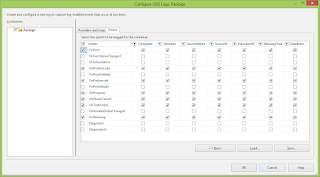
Finally click on the OK button to save logging configuration.
Step6. Now you can validate your logging information by executing the SSIS package. To get more information about hoe to execute SSIS package, click Different ways to Execute SSIS packages. My package looks like the picture shown below:
 You can see the log in sysSSISLog table after executing the package.
SELECT * FROM Test.dbo.sysssislog

I'hv been using SSIS since last 6-7 years and I have had to implement Logging Mechanism in almost all the projects to track/debug the execution of each and every task/event used in the package. Some of you may say its pretty easy to implement - still I guess we need to take care of logging because some of the things are not so easy.
Integration Services includes logging features that write log entries whenever run-time events occur but the good thing is that it can also write custom messages. Also SSIS supports a diverse set of log providers that can write log entries to: Text files, SQL Server Profiler, SQL Server, Windows Event Log, or XML files.
My favourite log is SQL Sevrer because using sql table I can write my own queries to find logging info related to specific task/event or any failure easily.
Basically SSIS logs are associated with packages and are configured at the package level. The task(s)/container(s) in a package can be enabled for logging even if the package itself is not e.g enable logging on an Execute SQL task without enabling logging on the parent package. Also package/container/task can write to multiple logs. You can enable logging on the package only, however you can choose to enable logging on any individual task/container.
You can select a level of logging as per your requirement by specifying the events to log and the information to log for each event, however some events provide more useful information than others.
I'll explain Logging using SQL Server 2012.
Note: SSIS 2005 uses table sysDtsLog90 for logging and SSIS 2008 & SSIS 2012 use sysSSISLog table for logging.
Below is the description of each element in the log schema:
| Element | Description |
|---|---|
| Computer | The name of the computer on which the log event occurred. |
| Operator | The identity of the user who executed the package. |
| Source | The name of the container or task in which the log event occurred. |
| SourceID | The unique identifier of the package; the For Loop, Foreach Loop, or Sequence container; or the task in which the log event occurred. |
| ExecutionID | The GUID of the package execution instance. |
| StartTime | The time at which the container or task starts to run. |
| EndTime | The time at which the container or task stops running. |
| DataCode | An integer value from the DTSExecResult enumeration that indicates the result of running task:
|
| DataBytes | A byte array specific to the log entry. The meaning of this field varies by log entry. |
| Message | A message associated with the log entry. |
The following table describes the predefined events that can be enabled to write log entries when run-time events occur:
| Events | Description |
|---|---|
| OnError | Writes a log entry when an error occurs. |
| OnExecStatusChanged | Writes a log entry when the execution status of the executable changes. |
| OnInformation | Writes a log entry during the validation and execution of an executable to report information. |
| OnPostExecute | Writes a log entry immediately after the executable has finished running. |
| OnPostValidate | Writes a log entry when the validation of the executable finishes. |
| OnPreExecute | Writes a log entry immediately before the executable runs. |
| OnPreValidate | Writes a log entry when the validation of the executable starts. |
| OnProgress | Writes a log entry when measurable progress is made by the executable. |
| OnQueryCancel | Writes a log entry at any juncture in the task processing where it is feasible to cancel execution. |
| OnTaskFailed | Writes a log entry when a task fails. |
| OnVariableValueChanged | Writes a log entry when the value of a variable changes. |
| OnWarning | Writes a log entry when a warning occurs. |
| PipelineComponentTime | For each data flow component, writes a log entry for each phase of validation and execution. The log entry specifies the processing time for each phase. |
| Diagnostic | Writes a log entry that provides diagnostic information e.g. you can log a message before and after every call to an external data provider. |
Implementing Logging in SSIS 2012
To implement the SSIS logging, follow these steps:
Step1. Create a Connection Manager for logging database. Right click on Connection Managers area and click on New OLE DB Connections... as shown below:

Step2. In the "Configure OLE DB Connection Manager" click on Create button. Now select Server Name and database name from Connect a database. I am using (Local) server and Test database. Click on Test Connection button to verify the connection.

Finally click on OK button to save the connection manager. This will create a new connection manage with ServerName.DatabaseName name. In my example, it is (local).Test. You can rename it to appropriate and meaningful name. For instance cmLogging.
Step3. Right click anywhere on the package surface area in the Control Flow to open Configure SSIS Log: Package wizard. Check the Package folder checkbox (left side) to enable the logging. Under the "Providers and Log" tab, select "SSIS log provider for SQL Server" in Provider type and click on Add button t add this logging for the package. Finally, click on Configuration to select the logging connection manager. Select cmLogging as connection manager.
Step4. Select logging events.
To prevent log files from using large amounts of disk space, which could degrade performance, you can limit logging by selecting specific events and information items to log. For example, you can configure a log to capture only the date and the computer name along with error message. It is not a good idea to log all the events. Under "Details" tab, select required events for logging:
Step5. Click on Advance button to set advance properties of the logging events.
Finally click on the OK button to save logging configuration.
Step6. Now you can validate your logging information by executing the SSIS package. To get more information about hoe to execute SSIS package, click Different ways to Execute SSIS packages. My package looks like the picture shown below:
SELECT * FROM Test.dbo.sysssislog